Prerequisite
Account and Access Permissions
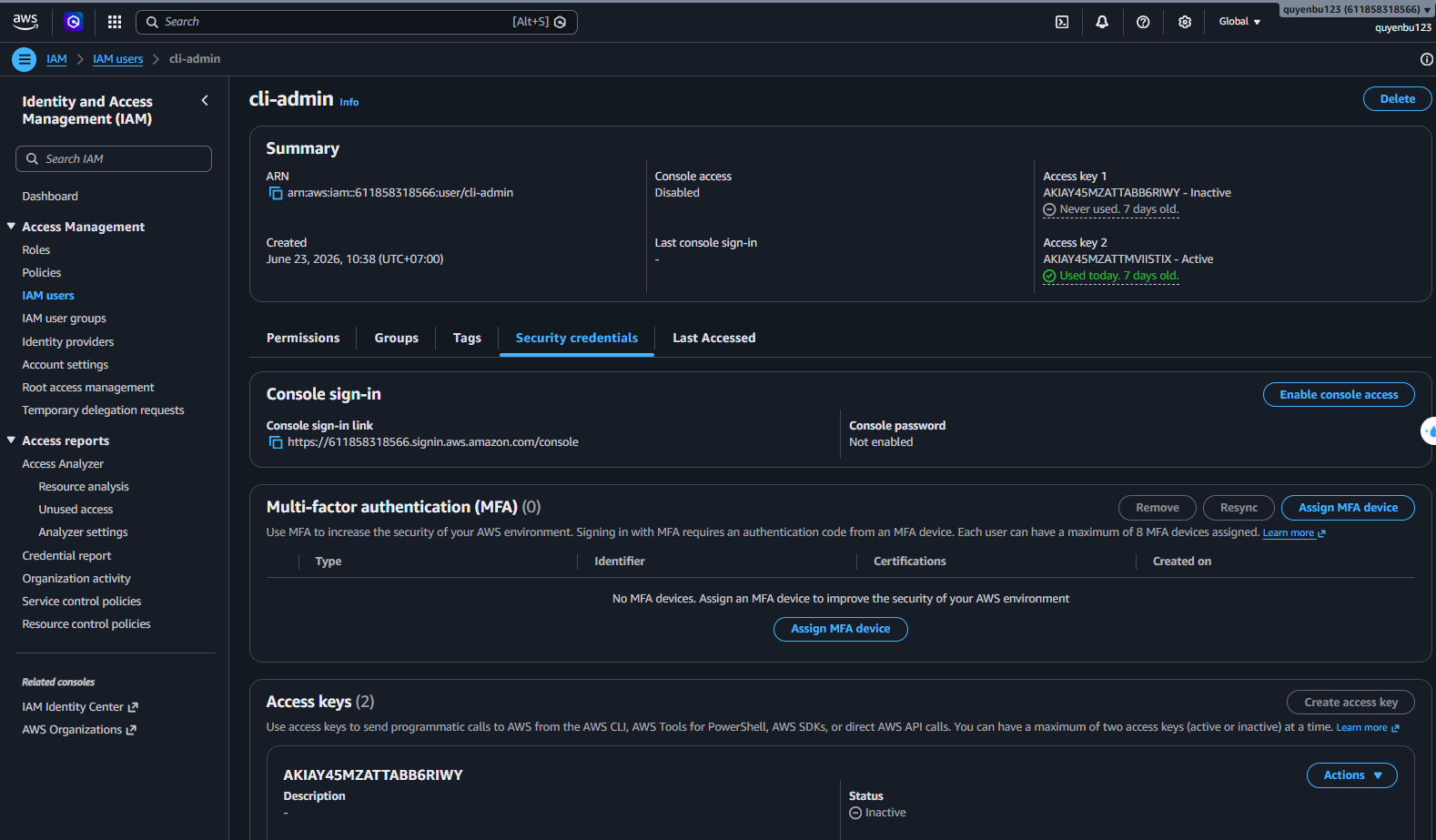
An active AWS account with IAM admin privileges. To obtain security keys for workstation connection, we performed the following steps:
Step 1 (On AWS Console): Log in to AWS Management Console, navigate to IAM (Identity and Access Management) -> Users, select your username, go to the Security credentials tab and locate the Access keys section. Click Create access key, select Command Line Interface (CLI) use case, acknowledge the terms, and confirm creation to generate an Access Key ID and Secret Access Key pair. Download the .csv file to store these security keys.
Step 2 (On Workstation): Open Terminal/Powershell on your personal computer and run aws configure. Enter the Access Key ID and Secret Access Key created in Step 1, set Default region name to ap-southeast-1 (Singapore) and Default output format to json. This configuration is automatically saved in the user’s home directory (%USERPROFILE%\.aws\ on Windows or ~/.aws/ on Linux/macOS).
Local Workstation Environment
Ensure the workstation has Node.js v20+, Java Development Kit (JDK) v21, Maven build tool, and Docker Desktop installed for local packaging and testing before pushing Docker images to ECR. The local environment requires a stable Internet connection to download Maven libraries and related Docker Base Images.
Region Selection
Select the Singapore (ap-southeast-1) region as the default deployment partition to optimize connection latency for end users in the Southeast Asian market and ensure compatibility of all AWS services used in the architecture.